Ten short lessons, from the first click to go-live. Follow along with the program open in another tab.
Open it and get to know the screen
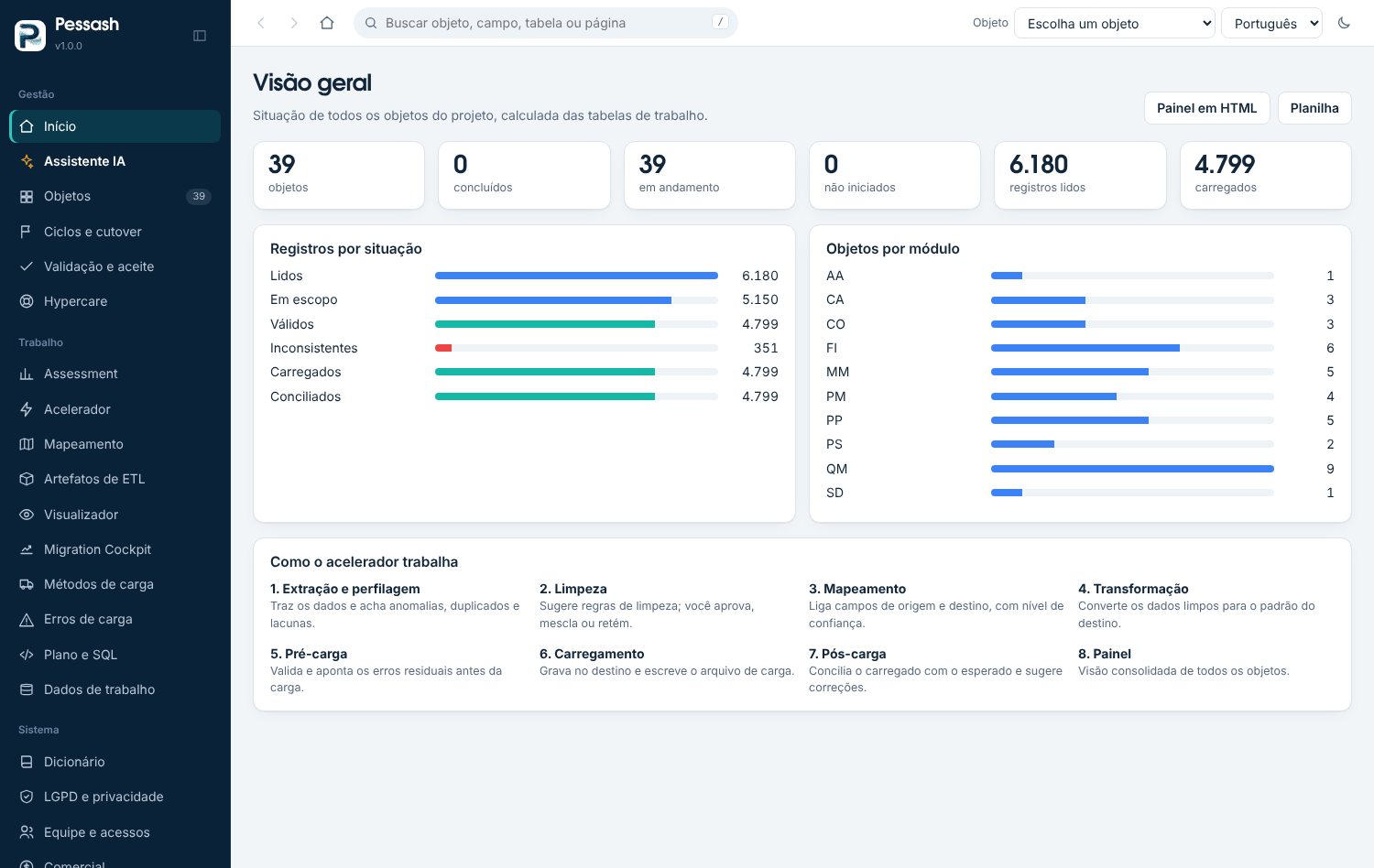
Open the program. The menu is on the left (use the collapse button to gain space). At the top: search, back/forward, home, object selector, language and theme.
Press / to jump to search: type an object, field, table or page.
Use the Object selector to choose which object you're working on.
The Assistant item opens the chat. Viewer shows the artifacts. Privacy (LGPD) gathers data protection.
Tip: the side menu and the object selector remember your choice on your next visit.
Load the objects
Go to Objects.
To practice, click Load the 39 sample objects.
For your project, click Import and choose the .xlsx mapping, or use New object… to start from scratch.
Use Projects to keep several migrations apart; each change is saved automatically. Export project still gives you your mappings in a .zip.
The exported file contains mappings only. Loaded data never goes into it.
Choose the data source
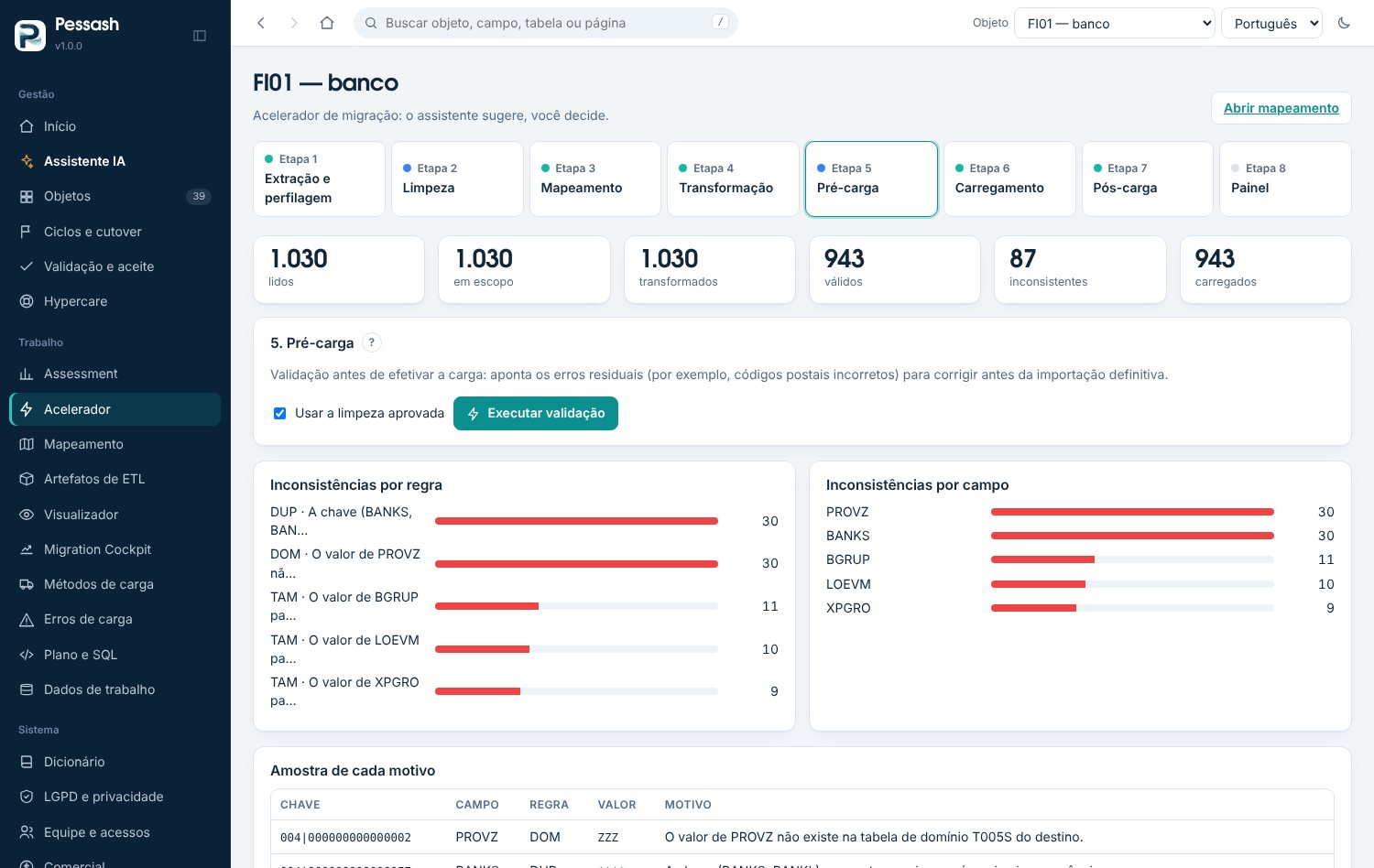
In the Accelerator, step 1, choose where the data comes from:
Demo data: click Prepare demo data. It's synthetic and safe to practice with.
Files: send CSV, XLSX, SQL, SQLite or ZIP. Allinon recognizes the table by the file name or the sheet.
Database (local version): enter the server and the source table. The password isn't stored.
If a source table is missing, the screen lists exactly which ones. You choose to send what's missing or accept its absence.
Run the steps as a dry run
Step 1: extract and look at the profiling (duplicates, gaps, records flagged for deletion).
Step 2: review the suggested cleansing rules. Approve, merge or hold back.
Steps 3 and 4: check the mapping and apply the transformation.
Step 5: the pre-load shows inconsistencies by rule and by field, with a sample of each reason.
Step 6: choose Dry run. Only use For real when you're sure; the program asks for a typed confirmation.
Step 7: the post-load reconciles and suggests fixes.
Edit mapping and rules
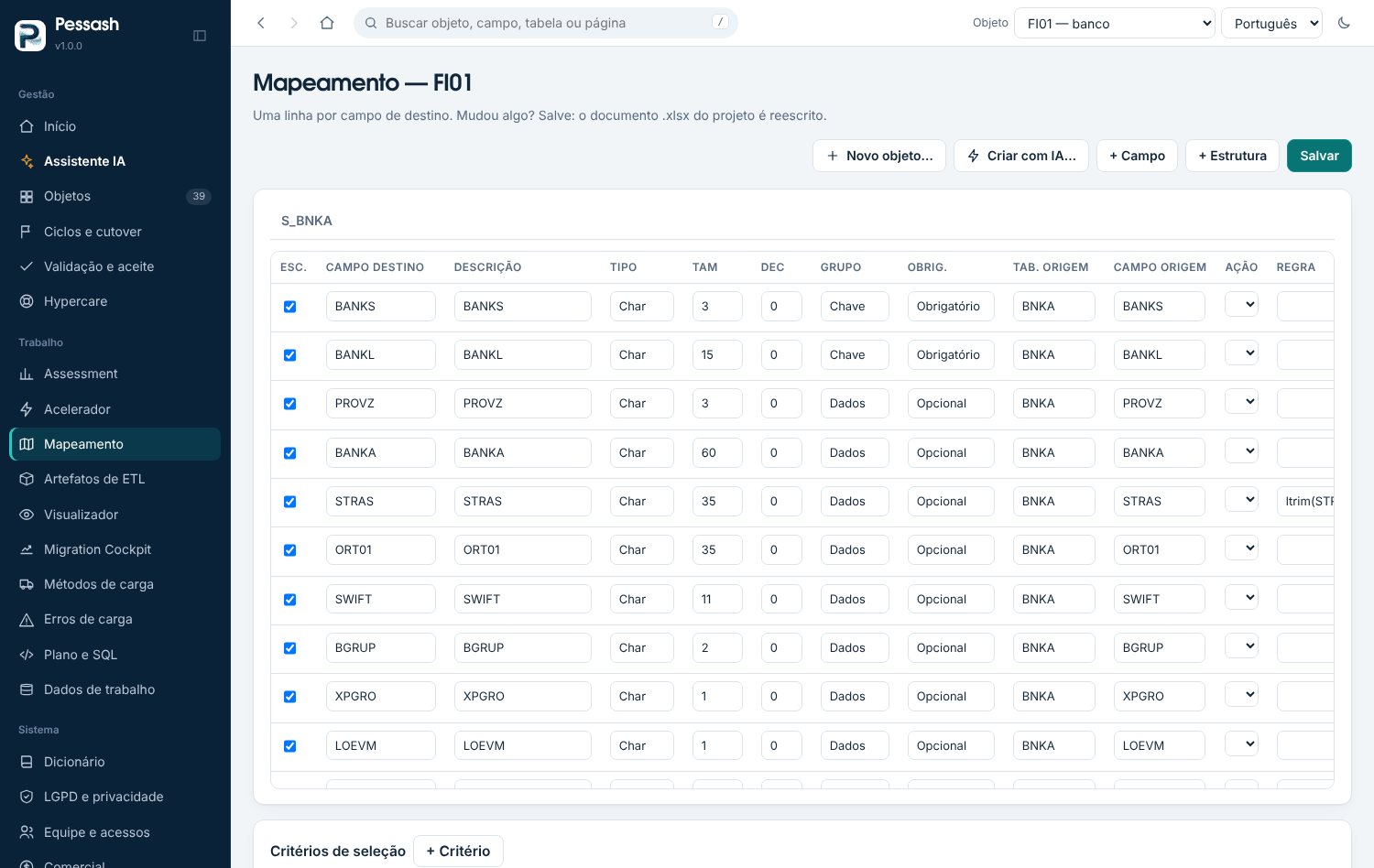
Open Mapping. Each row links a target field to a source and an action.
+ Field adds a row; + Structure creates a new structure; × removes.
In the rule column, the expression is tested when you leave the field: a green border is valid, red is refused, with the reason.
+ Criterion adds a selection filter (for example, active companies only).
When you save, Allinon tells you whether the output gate would refuse anything.
Generate artifacts
Open ETL artifacts.
Select the objects (use All if you like).
Select the tools and choose each one's version.
Adjust steps, source/target system and working schema.
Click Generate artifacts. Objects the gate refuses appear with the reason; the rest carry on.
Download all gives you a .zip with one folder per object.
Important: open the packages in your test environment before using them in production. Allinon hasn't tested them on your installation.
View them as in the tool
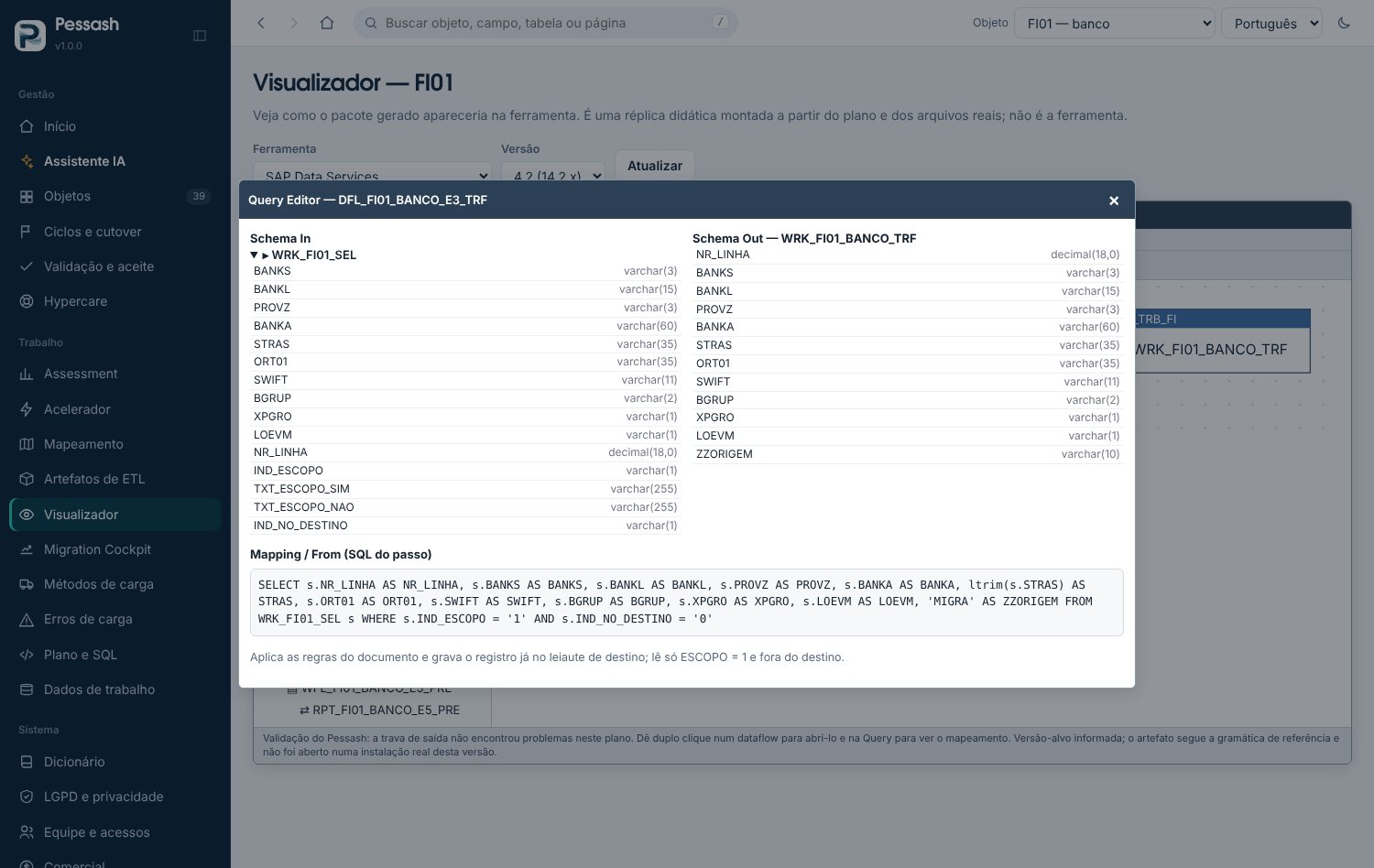
Open Viewer and choose the tool and version.
In the tree on the left, click a job, workflow or dataflow.
Double-click the Query to see the input schema, output schema and the step's SQL.
Use View file to read the exact text that was generated.
Protect personal data
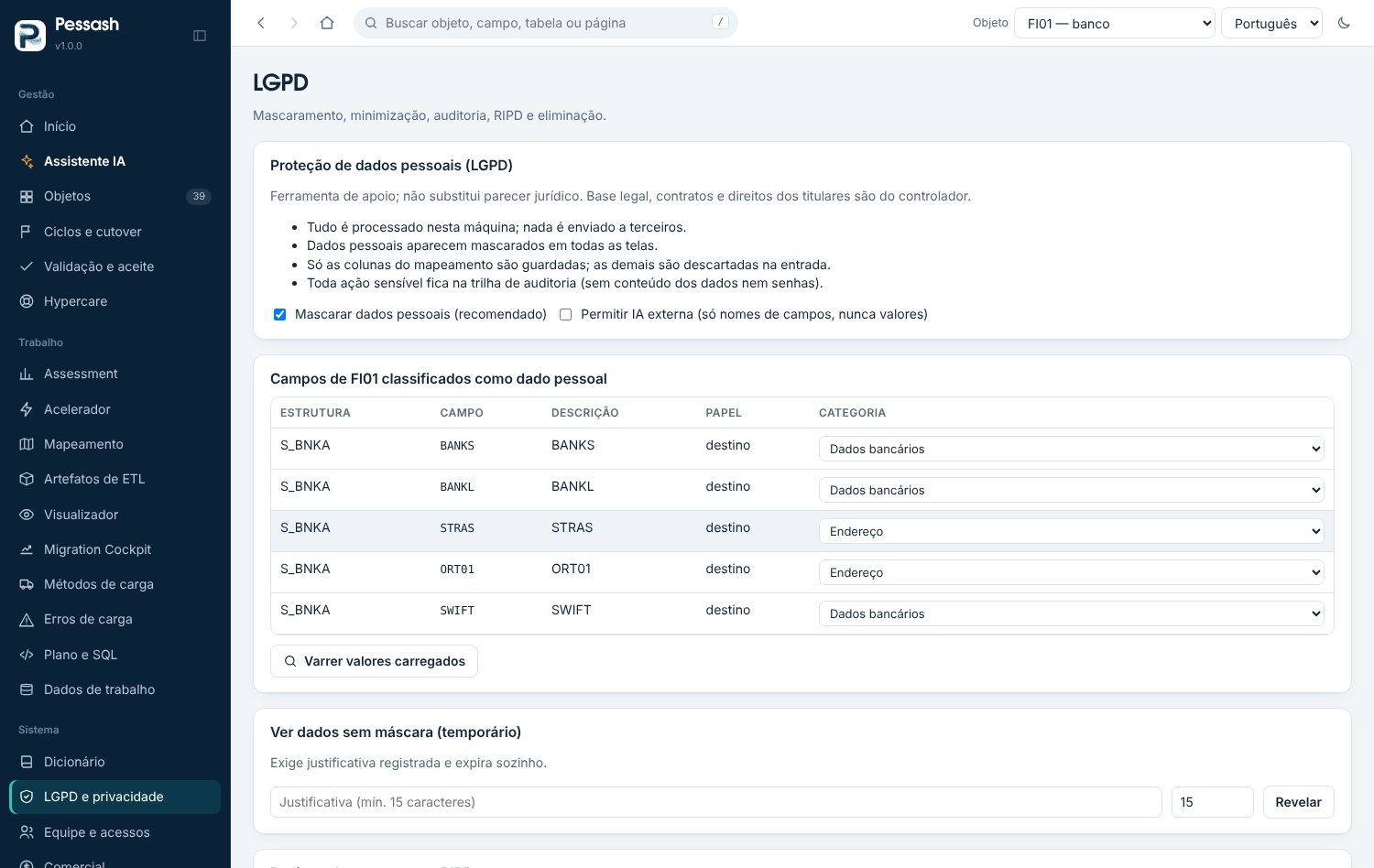
Open Privacy (LGPD). Check the field classification and fix the categories that don't make sense for your case.
Scan loaded values looks for patterns of Brazilian tax IDs, e-mail, phone and IBAN. Only counts appear, never the values.
Fill in the record of processing and download the DPIA (template) for your data protection officer to review.
To see a value unmasked, give a justification and a duration. Everything goes into the audit trail.
When the migration is over, use Delete working data and type the object code to confirm.
Assessment and Migration Cockpit
Open Assessment: see load waves, complexity, risks and hours. Adjust the parameters and download the report.
In S/4HANA, app Migrate Your Data: select the object → Download template (XML or CSV).
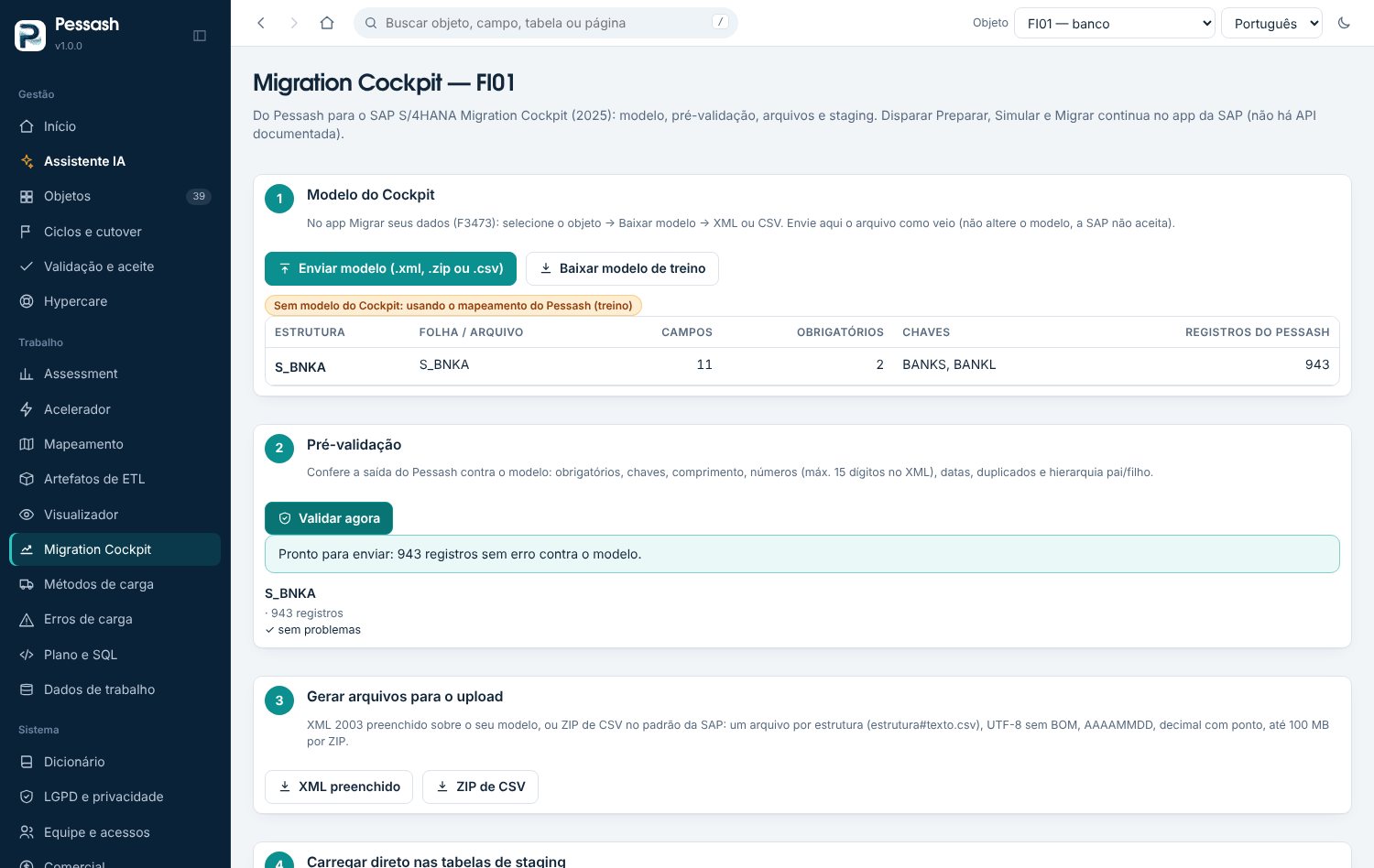
In Allinon, Migration Cockpit → Send template.
Validate now: fix in Allinon whatever shows up (duplicate key, length, required field).
Download the filled-in XML or the CSV ZIP and upload it to the Cockpit, or load straight into the staging tables (dry run first, then for real with the typed code).
In the Cockpit: Prepare → mapping tasks → Simulate → Migrate.
No S/4HANA access? Use the simulated staging and the training template to practice the whole flow.
The project end to end
In Team & access, register people and each one's role. The key user can be limited to their own objects.
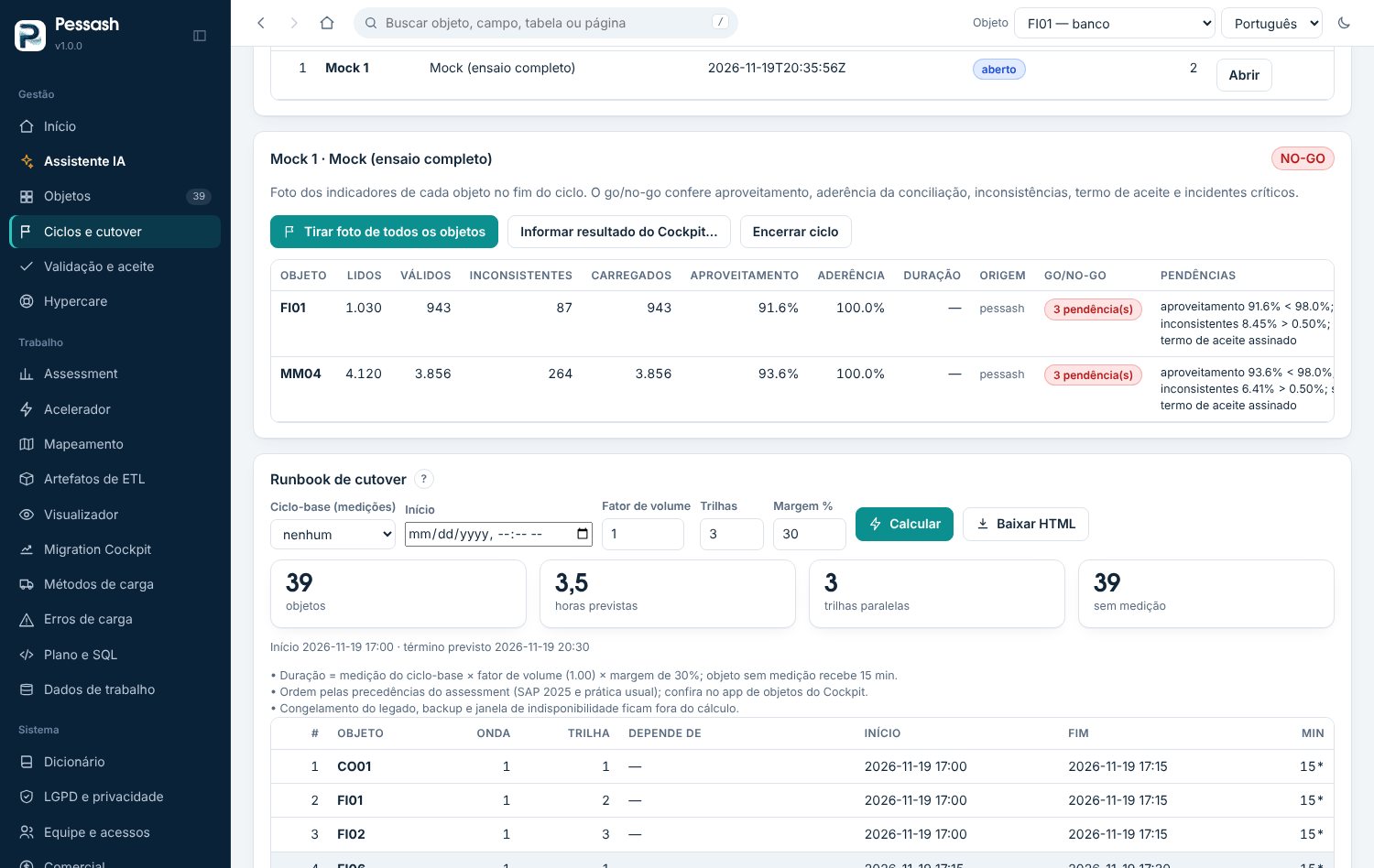
In Cycles & cutover, create the cycle (unit test, mock, dress rehearsal) and, at the end of it, click Take snapshot.
Send the load logs in Load errors: Allinon groups the messages and tells who fixes what.
In Validation & sign-off, the key user checks the records on screen or in a spreadsheet and signs each phase's record.
Before cutover, look at the cycle's go/no-go and compute the runbook with the time measured in the mocks.
After go-live, log whatever comes up in Hypercare, with severity and fix.
A load done outside Allinon, like the counters from the Cockpit monitor, enters the cycle through Report result.
Glossary
Dry run
Runs everything without writing to the target.
Output gate
Checks the plan and refuses to generate artifacts when there's something it can't guarantee.
Plan
The sequence of steps the engine runs and the generators turn into artifacts.
Value mapping
A table that converts a source value into a target value.
Object
Unit of migration: material, supplier, cost center.
Sign-off record
Record of the key user's decision on a phase's data, with the cryptographic digest of that data.
DPIA
Data protection impact assessment (in Brazil, RIPD under LGPD art. 38).